
How to change the reveal message, fonts and lyrics
Open Edit reveal page and choose Message. Add the Reveal title and Your message, choose which text to style, then tap a font. When Show lyrics is on, the words move with the song when timing is available.
In this guide
Write the title and note
On Message, enter the Reveal title and, if you want, Your message. These words appear after the gift opens. The opening itself shows the recipient greeting and opening button.
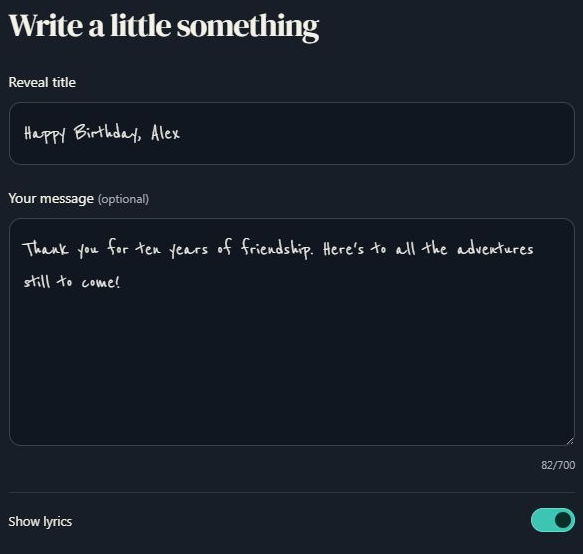
- Marker 1: Write the reveal title
- Marker 2: Add your message
- Marker 1: Write the reveal title
- Marker 2: Add your message
Choose which words to style
Under Choose a font, select Title & message, the For name greeting, or Lyrics when lyrics are shown. Tap the font sample you like. Changing one choice does not change the other text.
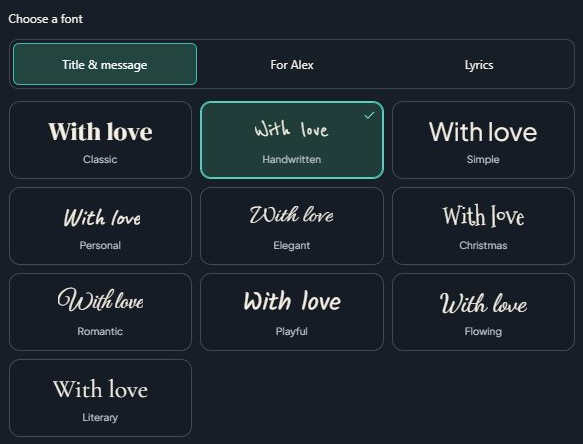
- Marker 1: Choose which words to style
- Marker 2: Choose a font
- Marker 1: Choose which words to style
- Marker 2: Choose a font
Show or hide the lyrics
When Show lyrics is on, your recipient sees the words, moving with the song when timing is available. Turn it off to hide them. If words are unavailable for that version, the page tells you. This switch does not change the sung words.
- Marker 1: Show or hide the lyrics
- Marker 1: Show or hide the lyrics
Check and save
Use the preview to check the text. Choose Review, then Save and finish. To change the actual sung words, use Make it right on the song page instead.
Change the sung lyrics
- Marker 1: Select Save and finish
- Marker 1: Select Save and finish


Checked