
How to choose the reveal design and opening
On Style, Change design controls the page that holds your song and photos. Change opening controls what your recipient opens first. You choose them separately.
In this guide
Choose the song page
Select Change design. Use Occasion or Style to narrow the choices, or leave All selected. Tap a design card to select it; the tick marks your choice.
See every design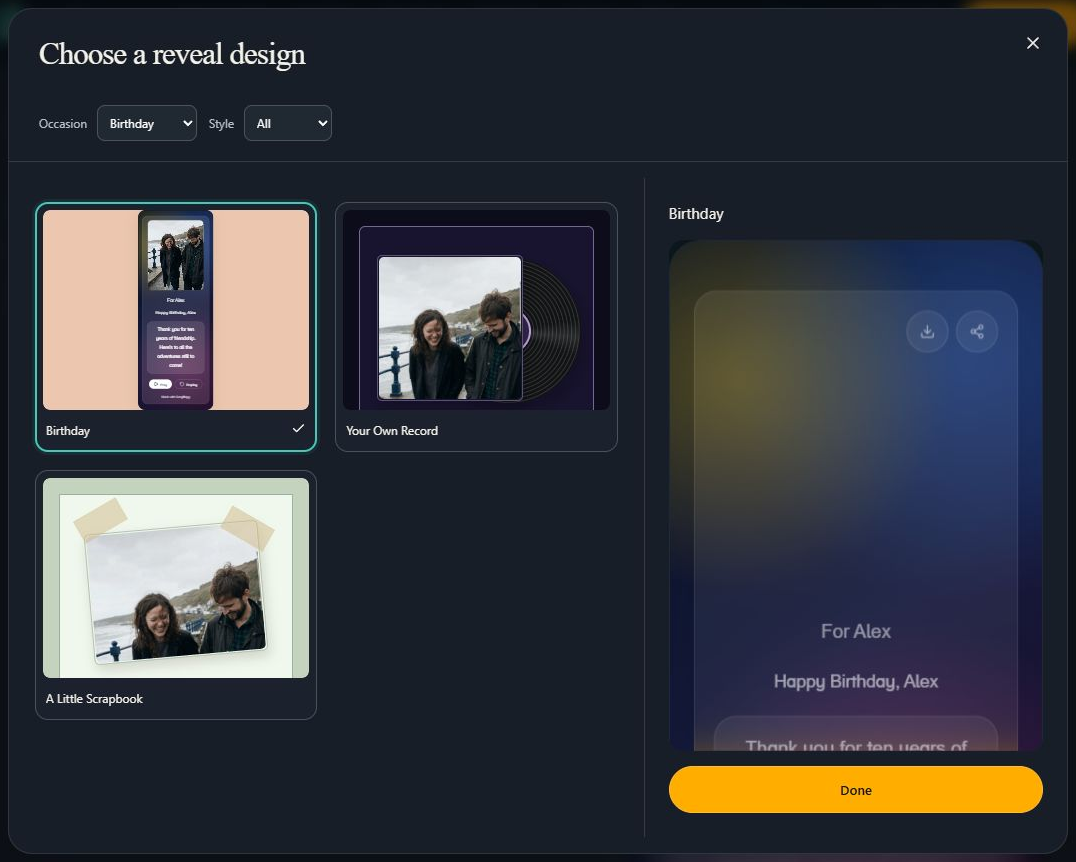
- Marker 1: Filter by occasion
- Marker 2: Click a design to select it
- Marker 1: Filter by occasion
- Marker 2: Tap a design to select it
Check the design
Select Preview to see your song page. Close the window when you are happy. Selecting a card changes the draft immediately; you do not need to apply it again.
Choose the opening
Select Change opening. Choose Wrapped for You, Curtain Call, A Letter for You, Gift box or Gentle Fade. Tap the card to select it.
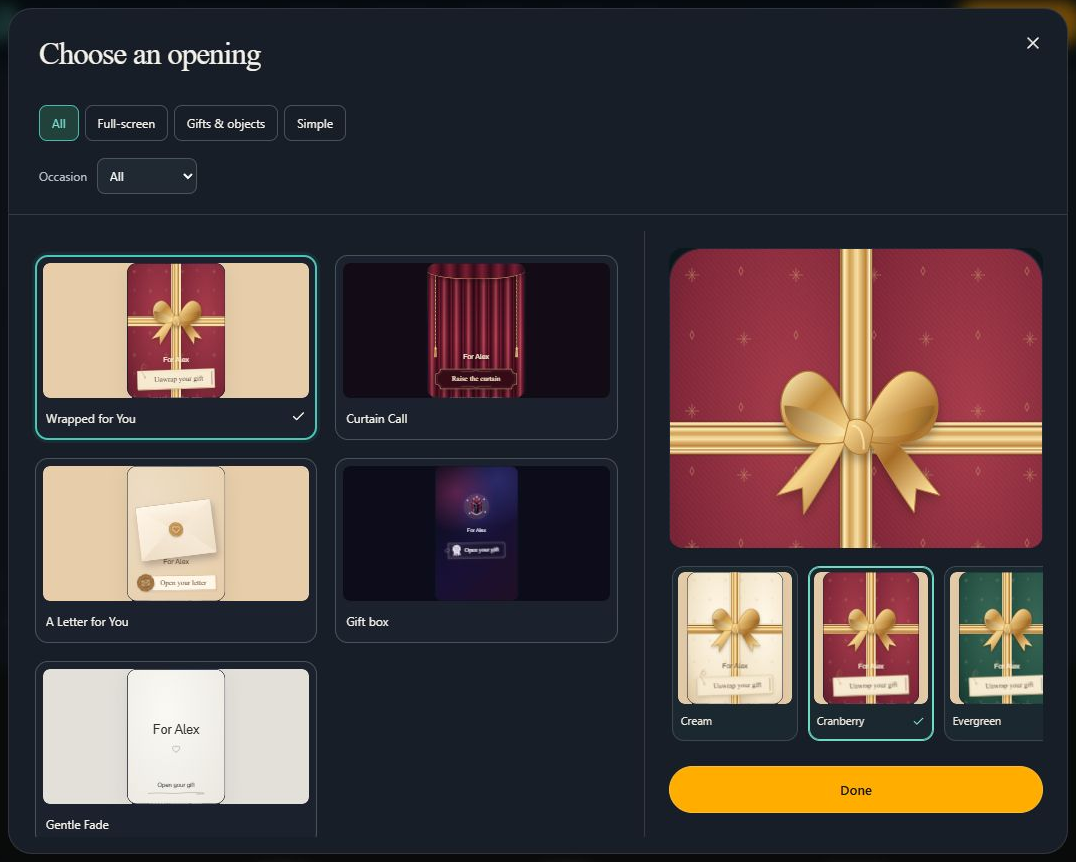
- Marker 1: Choose an opening
- Marker 2: Choose a wrapping style
- Marker 3: Return to the editor
- Marker 1: Tap an opening to select it
- Marker 2: See the opening and its styles
Choose a variation, if offered
For wrapping, curtains or gift boxes, select Preview and edit. Swipe through the variation cards, or use the gift-box background and box choices. Select Done when finished.
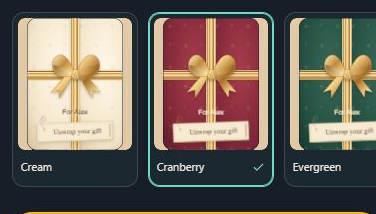
- Marker 1: Choose a wrapping style
- Marker 1: Choose a wrapping style
- Marker 2: Return to the editor
Try the whole gift
On Review, check Opening and Song page. Select Full page for a preview in a new tab, or Open full page inside the phone preview. Tap the gift to try the opening.
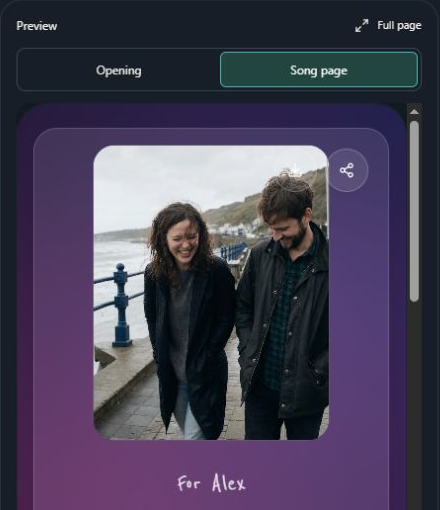
- Marker 1: Check the opening
- Marker 2: Check the song page
- Marker 3: Open Full page
- Marker 1: Check the opening
- Marker 2: Check the song page
- Marker 3: Open Full page
Save your choices
Return to the editor and select Save and finish. Wait for saving to complete.
- Marker 1: Select Save and finish
- Marker 1: Select Save and finish


Checked