
Saving a reveal and fixing photo uploads
Select Save and finish on Review to update the recipient’s gift. A private draft or preview has not been published. New photos upload during this save, so keep the editor open until it finishes.
In this guide
It says Private draft or Photos not saved
Your recipient has not received these changes yet. Go to Review and select Save and finish. Browser drafts are only on this device and do not keep newly added photo files if you leave.
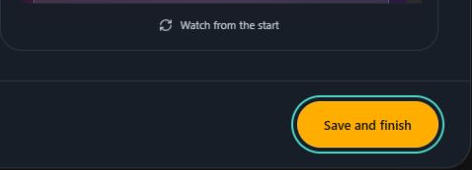
- Marker 1: Select Save and finish
- Marker 1: Select Save and finish
A photo will not upload
Select the photo marked with an error and read the message. Check your connection, then use Retry upload. If needed, remove it and add a JPG or PNG copy under 8 MB. Save and finish again after the photos are ready.
It asks you to log in again
Sign in to the same account. Reopen the editor and check your draft. Add any unsaved photos again before saving.
The full-page preview will not open
Allow the browser to open a new tab for Songilingy, then select Full page again. Keep the editor tab open while checking the preview. The preview address is not the link to send as a gift.
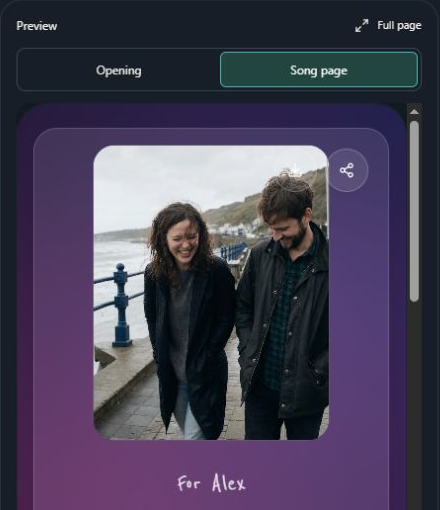
- Marker 1: Check the opening
- Marker 2: Check the song page
- Marker 3: Open Full page
- Marker 1: Check the opening
- Marker 2: Check the song page
- Marker 3: Open Full page
The gift still shows old changes
Wait for Save and finish to complete, then reopen the link from Share with link. If saving reports an error, the changes have not been published. Keep a copy of your message and send us the error.
Get help saving your reveal


Checked