
Speak your memories instead of typing
Select Speak your memories above the memories box. Your voice becomes text that you can edit before adding it to the song details.
Open song creator
In this guide
Open Speak your memories
On the story step, select Speak your memories above the text box. Anything you have already typed will stay there.
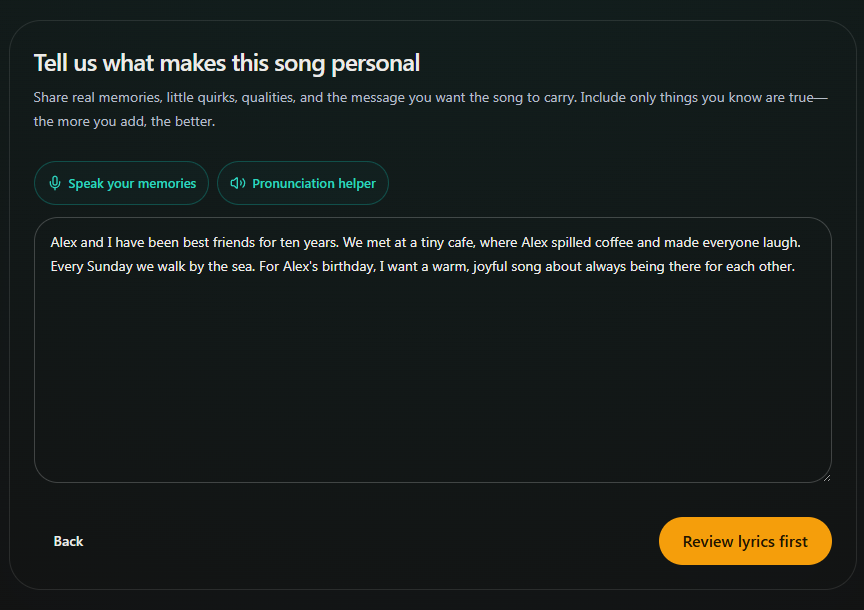
- Marker 1: Open Speak your memories
- Marker 1: Open Speak your memories
Start recording
Select Start recording and allow microphone access if your browser asks. Tell your story naturally; you can record for up to two minutes.
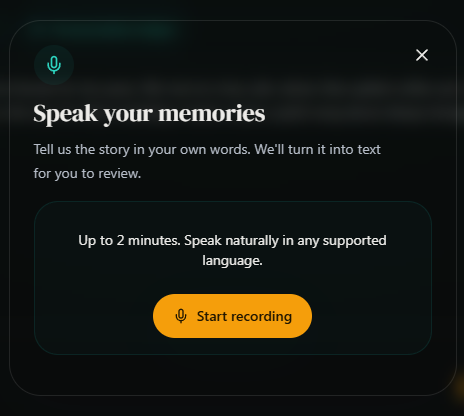
- Marker 1: Start recording your memories
- Marker 1: Start recording your memories
Finish your voice note
Select Stop & transcribe when you finish speaking. Wait for your words to appear.
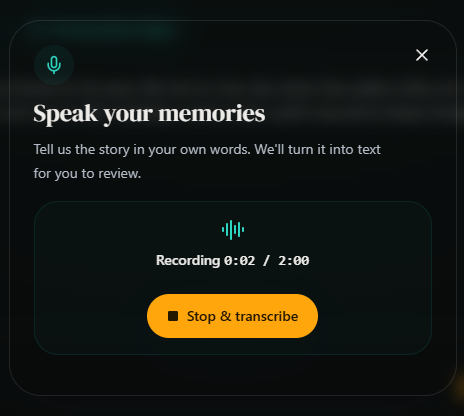
- Marker 1: Stop and transcribe
- Marker 1: Stop and transcribe
Check the words and add them
Correct any names or details in Review your words, then select Add to memories. The text is added after anything you already typed.
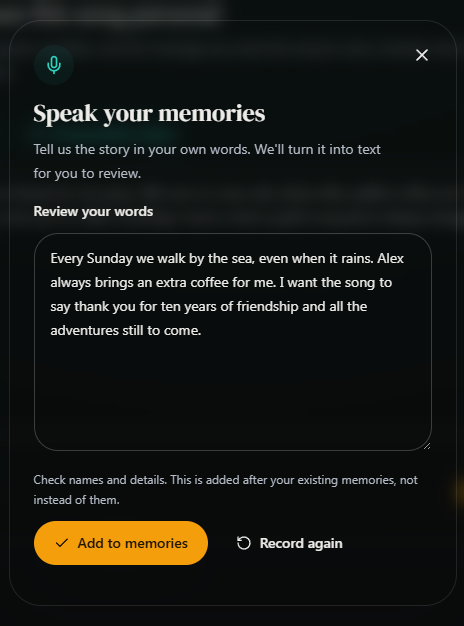
- Marker 1: Check names and details
- Marker 2: Add to memories
- Marker 1: Check names and details
- Marker 2: Add to memories


Checked